Feb 18, 2026
–Listen to MP3 Audio Version–(8 Min)
Introduction
In today’s fast-paced workplaces, teams often struggle with inconsistent shortcut keys that slow down workflows and create confusion. Macro keypads offer a smart solution by giving teams a shared “language” of actions—streamlining tasks without overwhelming training. Here’s how to implement team-wide macro standards that boost productivity while keeping learning simple and stress-free.
Why Teams Need Shared Shortcuts
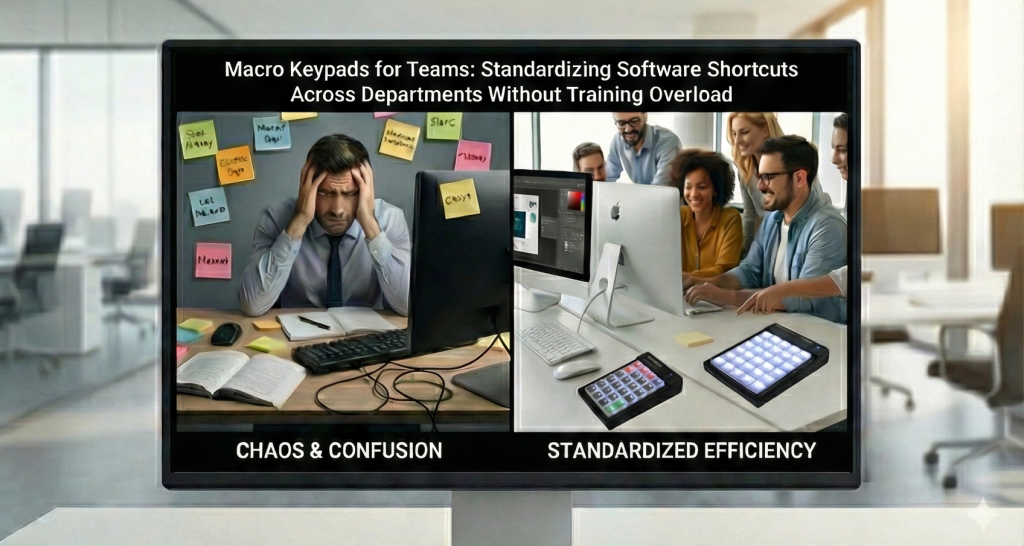
- Chaos of Different Shortcuts: When every person uses their own shortcut system, collaboration suffers. Mistakes increase, and efficiency drops as people hunt for the right key combinations.
• Common Language of Actions: Macro keypads enable everyone on the team to speak the same “shortcut language.” This reduces errors, speeds up communication, and creates a smoother workflow across departments.
In many organizations, the absence of standardized shortcuts leads to confusion and wasted time. For example, what one department uses as a shortcut to save a document might be entirely different for another, causing frustration when employees switch roles or collaborate on projects. By standardizing shortcuts with macro keypads, teams gain a consistent framework that everyone understands, minimizing disruptions and enabling smoother handoffs between departments.
Finding the Best Tasks to Turn Into Team Macros
- Everyday Repeated Tasks: Identify simple, frequent tasks everyone performs—like saving files, sending emails, or searching databases. These are prime candidates for macros.
• Company-Wide vs. Departmental: Establish shortcuts for actions that everyone shares, then layer in department-specific macros for specialized tasks, keeping the core consistent.
The key to effective macro implementation is focusing first on tasks that are repetitive and universal. These common actions form the backbone of your shared shortcuts. Once these essentials are covered, departments can add their own specialized macros for tasks unique to their workflows. This approach ensures that everyone benefits from a consistent base while still allowing flexibility to meet specific role demands.
A Simple Layout Blueprint Everyone Can Learn
- Fixed Positions for Universal Actions: Place common actions such as save, send, navigate, and search in fixed spots on the keypad so they become second nature.
• Clear Grouping and Labeling: Use visual groupings and clear labels so new users can instantly understand the layout without confusion.
An intuitive layout is critical for quick adoption. When universal actions are always found in the same place, users don’t have to relearn locations each time they switch tasks or teams. Grouping related functions together visually reduces cognitive load, making it easier for new users to “get it” immediately. Clear labeling further eliminates guesswork, accelerating the learning curve and boosting confidence.
Light Customization by Department (Without Losing Consistency)
- Practical Department Examples:
o Sales: Quick access to CRM entries, call scripts
o Support: Ticket status updates, canned responses
o Operations: Inventory checks, order processing
o Finance: Invoice generation, approval workflows - Role-Based Layers: Add one or two layers of keys for specialized functions while maintaining the same foundational shortcuts across the team.
While consistency is key, allowing departments to customize their macro keypads with a few role-specific shortcuts enhances productivity without fragmenting the system. By using layered keys, teams can retain a core set of universal shortcuts while giving specialized functions their own space. This balance ensures every team member has what they need without sacrificing overall standardization.
Keeping Training Fast, Simple, and Low-Stress
- Learnable in 10 Minutes: Design macro layouts that are intuitive enough to master quickly, minimizing onboarding time.
• Support Tools: Provide quick reference cards, on-device labels, and use easy-to-understand naming conventions for each key.
Training is often a barrier to adopting new tools, but with thoughtfully designed macro layouts, learning can be quick and painless. Keeping the design simple and logical means employees can become proficient in minutes rather than hours or days. Supplementing this with quick reference cards and visible labels helps reinforce learning on the job, reducing frustration and speeding up productivity gains.
Rolling Out, Tweaking, and Measuring Results
- Start Small: Launch a pilot with a small team to gather honest feedback and identify improvement areas.
• Incremental Improvements: Make small tweaks over time to enhance usability without disrupting muscle memory.
• Track Key Metrics: Measure reductions in clicks, time saved, and errors avoided to quantify the benefits.
A successful rollout depends on starting small and iterating based on real user feedback. Piloting with a select group allows you to understand how the macros perform in real work conditions and what adjustments are needed. Incremental refinements help optimize the system while preserving users’ hard-earned muscle memory. Tracking simple metrics like time saved or error reduction provides tangible proof of value to stakeholders.
The Right Hardware Makes Adoption Easier
Once you’ve defined your standardized layouts and layered shortcuts, the final piece is making them easy to deploy. The hardware you choose shouldn’t add complexity—it should reinforce consistency and reduce friction during rollout.
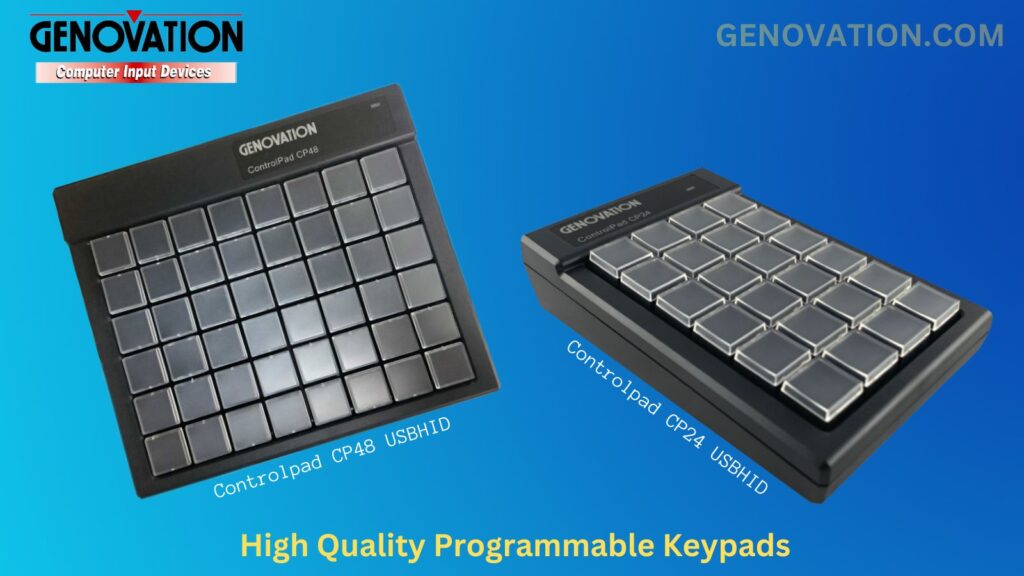
A programmable keypad like the Genovation ControlPad CP48 USB HID can serve as a reliable foundation for team-wide macro standards. Its design supports structured layouts while still allowing room for role-based customization.
Capabilities that make it well-suited for standardized deployments include:
- 48 fully programmable keys with two levels per key—providing space for universal shortcuts plus department-specific layers
• Onboard flash memory that stores macros directly on the device, eliminating the need for drivers or reprogramming when moving between workstations
• Cross-platform compatibility with Windows, macOS, and Linux environments
• Industrial-grade mechanical switches rated for heavy daily use
• Relegendable keycaps and included extras that make labeling and layout consistency easy across teams
When hardware supports your structure—rather than complicating it—adoption becomes smoother. Teams can plug in, recognize the standardized layout, and get to work immediately.
Start Standardizing Today
Standardized macro keypads reduce confusion, cut training time, and create a shared operational language across departments. Start with a small pilot, refine based on feedback, and scale what works.
If this article resonated with you, share it with your colleagues and leadership team to standardize shortcuts and boost efficiency across your entire team.