
Introduction
The Genovation MiniTerm 909 pin pad can be programmed to operate
as a standard USB HID keyboard, here is how it’s done.
Entry to Boot Menu
Press and hold the CLEAR and ENTER keys on the bottom row and power up the
pin pad (plug it in). Release the two keys.
You will be presented with the message:

Press # 5 on the pin pad to setup the USB connection type:
You will be presented with the message: The ####### will show which USB type is currently selected.
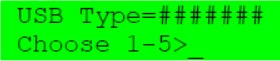
Press # 2 on the pin pad to setup the MiniTerm 909 to operate as a USB HID 102-key keyboard
Press the ENTER key on the pin pad to confirm and save
Press the CLEAR key to edit your selection
Press # 4 on the pin pad to setup the MiniTerm 909 to operate as a USB HID multimedia keyboard
Press the ENTER key on the pin pad to confirm and save
Press the CLEAR key to edit your selection
The Genovation MiniTerm 909 pin pad will save your settings and reset itself so the operating system
can activate the USB device you have selected
Testing
When complete, you should be able to open any text editor application and enter pin numbers to test.
• Type 123 on the MiniTerm 909 and press the ENTER key.
• “123” should be visible within the text editor and the cursor should go to the next line.
Conclusion
This simple and easy process is all that is needed to begin using your Genovation MiniTerm 909 pin pad.